차 례
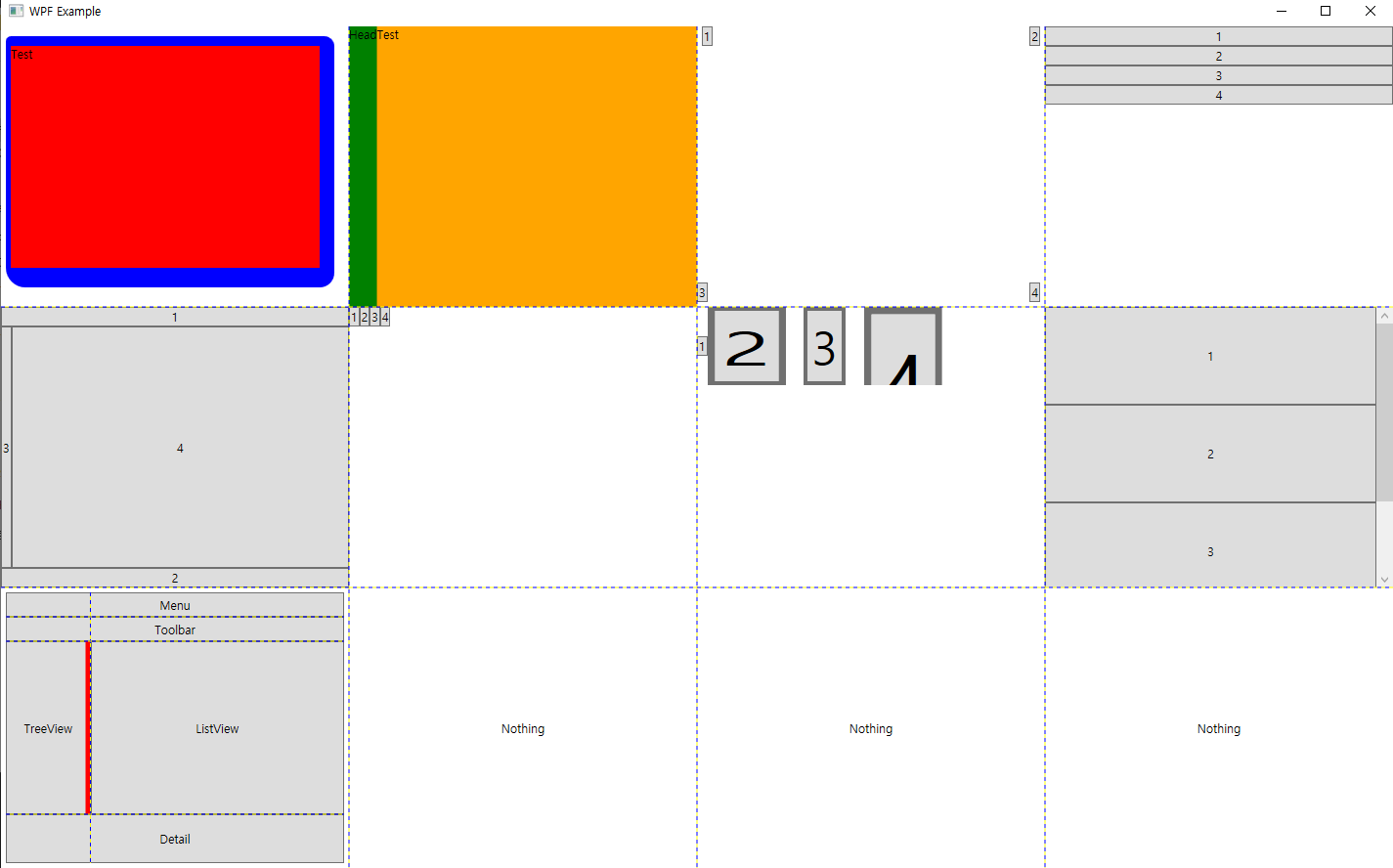
- Border
- BulletDecorator
- Canvas
- StackPanel
- DockPanel
- WrapPanel
- ViewBox
- ScrollViewer
- Grid
- GridSplitter
- 예제 소스 파일
Border
외곽 테두리 지정
BulletDecorator
행머리를 사용할 때 사용함.
Canvas
Canvars.(Top|Bottom|Left|Right) 비교적 자유롭게 컨트롤을 이동 가능.
StackPanel
한열로 쭉 쌓임. (화면이 꽉차면 그 이상의 컨트롤은 안보임)
DockPanel
탐색기나 HTML 의 frame 태그와 비스무리하게 쓰임.
WrapPanel
StackPanel 과 비슷하긴한데, 컨트롤이 화면에 꽉차면 다음행 혹은 다음열로 이동함.
그래도 꽉차면 안보이는것은 StackPanel 과 동일.
그 외에 ItemWidth 혹은 ItemHeight 를 통해 WrapPanel 내에 있는 컨트롤들의 크기를
동일한 크기로 조정 가능하며, 개별적으로 Width, Height 의 속성을 가지고 있는 컨트롤이 있는 경우
그 개별적으로 가지고 있는 컨트롤 속성을 우선시하며, 동시에 ItemWidth 혹은 ItemHeight 값이 큰 경우
Margin 과 같은 효과를 얻을 수 있다.
ViewBox
컨트롤을 확대 혹은 축소 가능함.
ScrollViewer
말 그대로 스크롤이 가능한 윈도우
<ScrollViewer>
    <StackPanel Width="100" Height="100">
    	<Button Content="1" Height="20" />
    	<Button Content="2" Height="20" />
    	<Button Content="3" Height="20" />
    	<Button Content="4" Height="20" />
    	<Button Content="5" Height="20" />
    	<Button Content="6" Height="20" />
    	<Button Content="7" Height="20" />
    </StackPanel>
</ScrollViewer>
Grid
테이블 레이아웃을 만들기 위한 컨트롤
    <Grid ShowGridLines="True">
        <Grid.ColumnDefinitions>
            <ColumnDefinition Width="1*" />
            <ColumnDefinition Width="3*" />
        </Grid.ColumnDefinitions>
        <Grid.RowDefinitions>
            <RowDefinition Height="Auto" />
            <RowDefinition Height="Auto" />
            <RowDefinition Height="1*" />
            <RowDefinition Height="50" />
        </Grid.RowDefinitions>
        <Button Content="Menu" Grid.Row="0"  Grid.ColumnSpan="2" />
        <Button Content="Toolbar" Grid.Row="1"  Grid.ColumnSpan="2" />
        <Button Content="TreeView" Grid.Row="2"  Grid.Column="0" />
        <Button Content="ListView" Grid.Row="2"  Grid.Column="1" />
        <Button Content="Detail" Grid.Row="3"  Grid.ColumnSpan="2" />
    </Grid>
GridSplitter
위 Grid 로 나뉜 경계를 크기 변경이 가능하게 하는 컨트롤.
    <Grid ShowGridLines="True">
        <Grid.ColumnDefinitions>
            <ColumnDefinition Width="1*" />
            <ColumnDefinition Width="3*" />
        </Grid.ColumnDefinitions>
        <Grid.RowDefinitions>
            <RowDefinition Height="Auto" />
            <RowDefinition Height="Auto" />
            <RowDefinition Height="1*" />
            <RowDefinition Height="50" />
        </Grid.RowDefinitions>
        <!-- 해당 부분이 추가됨. -->
        <GridSplitter Grid.Row="2" Grid.Column="1" HorizontalAlignment="Left" Width="3" Background="Red" Panel.ZIndex="999" />
        <Button Content="Menu" Grid.Row="0"  Grid.ColumnSpan="2" />
        <Button Content="Toolbar" Grid.Row="1"  Grid.ColumnSpan="2" />
        <Button Content="TreeView" Grid.Row="2"  Grid.Column="0" />
        <Button Content="ListView" Grid.Row="2"  Grid.Column="1" />
        <Button Content="Detail" Grid.Row="3"  Grid.ColumnSpan="2" />
    </Grid>
'Windows > C#/WPF' 카테고리의 다른 글
| WPF Control (0) | 2021.05.02 |
|---|---|
| WPF 에서 WinForm 컨트롤을 생성하는 방법 (0) | 2021.05.01 |
| Object 요소 property (0) | 2021.05.01 |
| XAML 의 로드 (0) | 2021.04.30 |
| WPF XAML 스타일 정의 예제 (0) | 2021.04.29 |
댓글